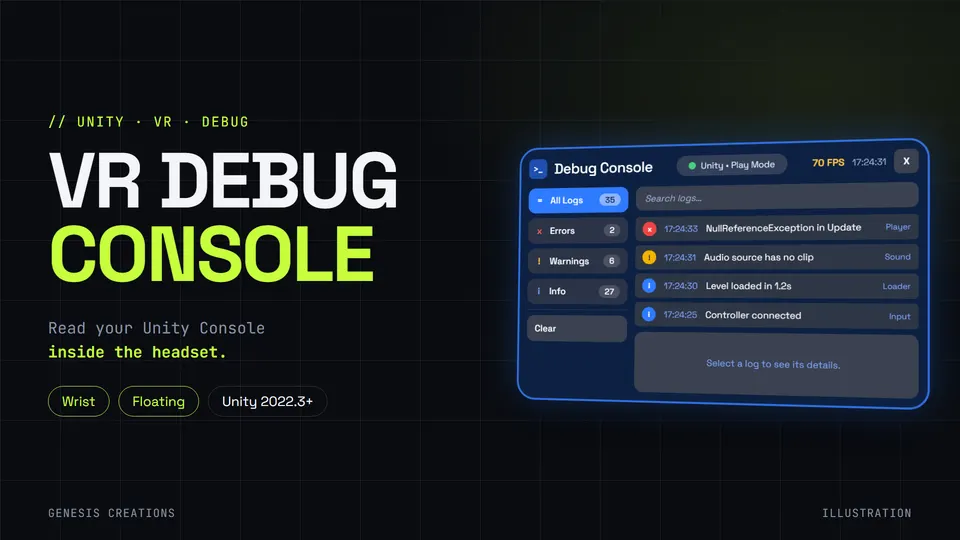
Read Unity logs, errors and warnings in your VR headset. Wrist or floating console with search, filters, stack traces and an FPS counter.
| Tier | Seats | Covers |
|---|---|---|
| Individual | 1 seat | Personal and indie commercial use. Ship in unlimited commercial projects. |
| Studio | Up to 10 seats | The same rights, shared across a studio of up to ten people. |
| Enterprise | Unlimited seats | Unlimited seats and priority support. |
Perpetual and royalty-free on every tier. Redistribution or resale of the source files is not permitted. Full licence terms
Stop taking your headset off to check the Console.
VR Debug Console puts Unity's Console inside your VR app. It appears as a floating panel you open and close with a controller button, so you can read errors, search them and see where they came from while you are still wearing the headset.
KEY FEATURES • Live log mirror: logs, warnings, errors and exceptions from your game appear in a world-space panel, newest first • Sidebar filters: All Logs, Errors, Warnings and Info, each with a live count, plus a Clear button • Search: find a message by typing part of it • Detail pane: full message, source script and line, time, scene and stack trace, with a Copy Stack Trace button • FPS counter: turns green, yellow or red depending on how smooth your frame rate is • Wrist or floating: attach the console to your wrist like a watch, or have it float in front of you • Auto-open on error: the console can open itself when an error is logged (can be turned off) • Duplicate merging: identical repeated messages collapse into one row with a counter such as (x15) • Capped buffer: keeps the latest 200 messages by default, so it never floods
ONE-CLICK SETUP Choose GameObject > Genesis > VR Debug Console. The console and its settings asset are created for you.
WORKS WITH YOUR VR TOOLKIT • Unity XR Interaction Toolkit: detected automatically, ray clicks work out of the box • Meta Interaction SDK (Meta XR SDK 85 or newer): ray and poke interaction connect automatically when your scene uses Meta's PointableCanvasModule • Hurricane VR: import the included Hurricane VR Integration sample from the Package Manager • Other toolkits: the console shows and toggles, and a public integration API (ConsoleIntegrations) lets you wire up input yourself
CONTROLS • Toggle: secondary button on the left controller (Y on Quest), or the backtick key in the Editor • Tap a message to see its details • Tap a category to filter, or type to search
BUILT FOR SAFETY • Only displays the messages your game already produces and does not change how it behaves • Sends nothing over the internet, so everything stays on your device • A built-in input self-check warns you inside the console if the scene has no EventSystem or no recognised VR UI input module
REQUIREMENTS • Unity 2022.3 or newer (tested on 2022.3.40f1 and Unity 6000.3) • A VR rig in your scene, with a way to point and click UI (XR Interaction Toolkit, Meta Interaction SDK or Hurricane VR) • Input System and uGUI (installed automatically)
KNOWN LIMITATION Typing into the search box inside the headset depends on the headset's on-screen keyboard, which has not been tested yet. Search works with a physical keyboard on your computer.
DOCUMENTATION AND SUPPORT Full documentation is included in the package and linked from the Package Manager. Support: amr.helmy@genesiscreations.co
Use in unlimited commercial projects under the selected license tier. Redistribution or resale of source files is not permitted.
90 days on assets and tools; 14 days on courses if under 20% watched. Version updates within the major version are free.
Read the full license →Read the refund policy →Loading reviews…
Loading questions…